Display Screens
Understand the default and auto scroll display screens
The default Split Screen display shows the following elements: • Status Bar • Temperature row — box temperature for each compartment • Setpoint row — setpoint for each compartment • Compartment Highlight Box • Operating Mode row • MessageCenter • Compartments C1, C2, and C3

• 1 – Display Screen • 2 – MENU key • 3 – DEFROST key • 4 – START/STOP – CONTINUOUS key • 5 – Alarm LED • 6 – ALARM key • 7 – Arrow keys • 8 – "=" (Select) key • 9 – START/RUN-OFF switch • 10 – Soft keys • 11 – USB interface port
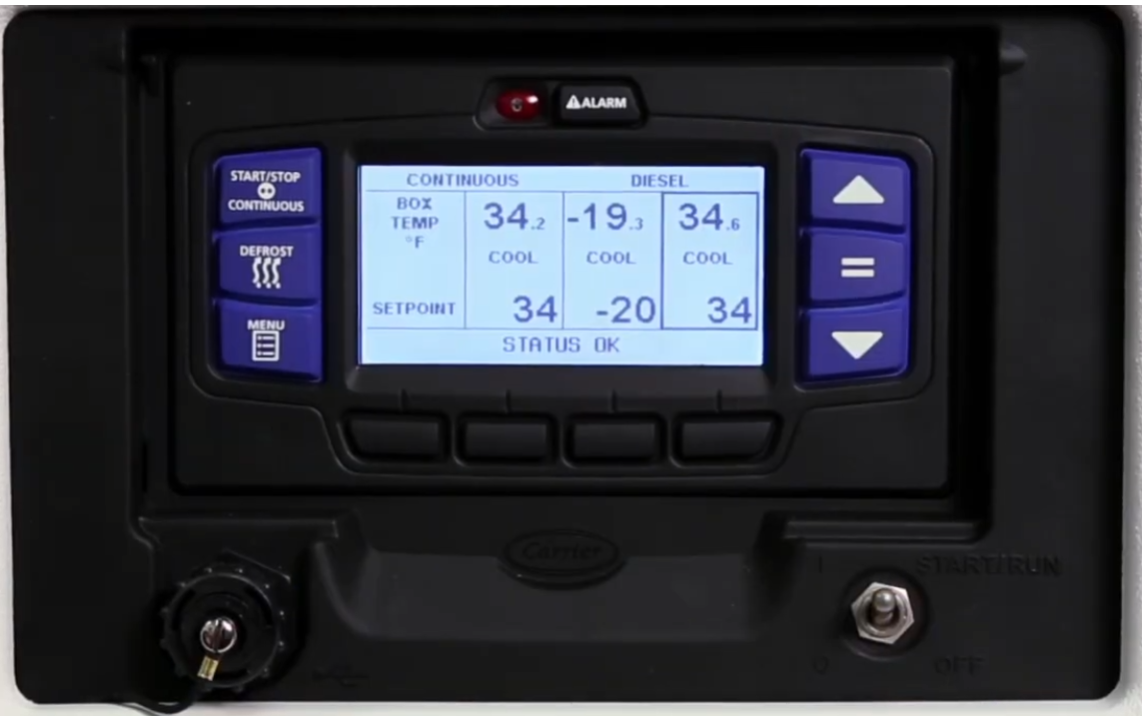
There are two display options: • SPLIT SCREEN — shows each compartment setpoint and box temperature in one view • AUTO SCROLL — shows one compartment setpoint and box temperature at a time, automatically cycling through each active compartment Only compartments that are turned ON will be displayed.
The Auto Scroll screen shows: • Status Bar • Box Temperature • Setpoint • MessageCenter • Compartment indicator (C1, C2, or C3)
Switching Between Display Options
Press and release the MENU key until the LANGUAGE/VIEW soft key is displayed.
Press the LANGUAGE/VIEW soft key to open the LANGUAGE/VIEW screen.
Press the ▲ or ▼ key to highlight "VIEW:", then press the EQUALS (=) key. The current view option will be highlighted.
Press the ▲ or ▼ key to toggle between AUTO SCROLL and SPLIT SCREEN. Press the EQUALS (=) key to select the desired display option.
Press the EXIT soft key to return to the selected display.
Display screen examples throughout this manual use the default Split Screen view.
• Highlight — white letters on a black background indicate the selected item • BACK key — returns to the previous screen • EXIT key — returns to the default screen • Status bar shows the position of the highlighted item and total number of items in a list • Up to 5 items display at a time; press ▼ to view more or ▲ to scroll back • "END OF LIST" displays after the last item in a list